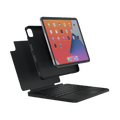
Brydge Air MAX+
Brydge Air MAX+
Full-size keyboard case with multi-touch trackpad and 4-foot drop protection, for iPad Air and Pro users who won't compromise.
Compatible with iPad Air (4th & 5th gen) and iPad Pro 11" (1st–4th gen)
Out of stock
Couldn't load pickup availability
Share
Not sure which iPad?
Why Brydge Air MAX+
4-foot drop protection
Built tough. Your iPad stays safe wherever you go.
Magnetic SnapFit™ case
Snaps in and out in seconds. Secure when you need it.
Multi-touch glass trackpad
Full gesture support. Smooth, precise, responsive.
Instant-On™ connectivity
Open and type. No pairing, no waiting.
Compatible with:
iPad Air (2020) – 4th Gen | 10.9-inch | Model A2316, A2324,
A2325, A2072
iPad Air (2022) – 5th Gen | 10.9-inch | Model A2588, A2589,
A2591
iPad Air (2024) – M2 | 11-inch | Model A2902, A2903, A2904
iPad Air (2025) – M3 | 11-inch | Model A3265, A3266, A3267
iPad Air (2026) – M4 | 11-inch | Model A3459, A3460, A3463
iPad Pro (2018) – 11-inch (1st Gen) | Model A1980, A1934,
A2013, A1979
iPad Pro (2020) – 11-inch (2nd Gen) | Model A2228, A2068,
A2230, A2231
iPad Pro (2021) – 11-inch (3rd Gen) | Model A2377, A2459,
A2301, A2460
iPad Pro (2022) – 11-inch (4th Gen) | Model A2759, A2761,
A2435, A2762
How to Find Your Model:
METHOD 1: On the back of your iPad - "Model A####" –
METHOD 2: Settings → General → About → Model Number
“For iPad Air, Brydge Air MAX+ stands alone as the most thoughtful and polished keyboard/ trackpad/ case combo.”
“If you own an iPad and wish you could transform it into a mini-laptop, it’s tough to beat Brydge wireless keyboards.”
Key features
Full multi-touch gesture support
Swipe between apps. Scroll through documents. Select text with precision. The glass trackpad surface is also smooth, responsive, and accurate.
Instant-On™ connectivity means your keyboard connects the moment you open it. No buttons. No pairing menus. No waiting. Just open and start typing.
Secure by design.
Drop your iPad in and the SnapFit case takes care of the rest. Strong magnets lock it in place, protected front and back, ready whenever you are.
Work in any lighting conditions.
Adjustable backlit keys that keep every letter perfectly visible, day or night.
Full-size keys with 1.3mm travel deliver tactile feedback designed for extended typing session
MIL-STD-810G Drop Protection Built to take a knock. The Air MAX+ is certified to MIL-STD-810G standards, surviving drops of up to 4 feet. A keyboard case that's as tough as it looks.
Bluetooth® Wireless Instant-On™ connectivity. Bluetooth 5.0 means your keyboard connects the moment you open it no buttons, no pairing menus, no waiting. The 10.9 Max remembers your iPad and reconnects automatically.
Snap On.
Go Anywhere.
Air Max+ transforms your iPad in seconds with a secure magnetic connection, ultra-light, protective, and ready for wherever the day takes you.
Ultra-Light.
Always Ready.
Designed to move with you. Air Max+ adds protection without bulk, so your iPad stays portable, slim, and effortless to carry.
Protected From Every Angle.
Durable front and back coverage keeps your iPad safe from everyday bumps and scratches, without compromising on style.
New SnapFit™ Case. Designed to go places.
A keyboard case that feels as good as it looks.
The Air MAX+ features an all-in-one SnapFit™ Case designed to flawlessly match your iPad. Simply snap your iPad into the magnetic back cover to create the perfect productivity experience - whether you’re on the road, in the office or at home.
Did we mention it’s clean?
The Air MAX+ case and keyboard exterior contain an active antimicrobial ingredient that inhibits the growth of microorganisms.
This antimicrobial technology is effective against harmful bacteria and viruses, providing ongoing protection for the lifetime of the product.
*It does not protect the iPad screen or the keyboard keys.
Make wherever you're working from work for you.
TECH SPECIFICATIONS
Brydge Air MAX+
Compatibility
iPad Air (4th & 5th Gen), iPad Air 11-inch (M2, M3 & M4) and iPad Pro 11-inch (1st, 2nd, 3rd & 4th Gen)
iPad Air (2020) – 4th Gen | 10.9-inch | Model A2316, A2324, A2325, A2072
iPad Air (2022) – 5th Gen | 10.9-inch | Model A2588, A2589, A2591
iPad Air (2024) – M2 | 11-inch | Model A2902, A2903, A2904
iPad Air (2025) – M3 | 11-inch | Model A3265, A3266, A3267
iPad Air (2026) – M4 | 11-inch | Model A3459, A3460, A3463
iPad Pro (2018) – 11-inch (1st Gen) | Model A1980, A1934, A2013, A1979
iPad Pro (2020) – 11-inch (2nd Gen) | Model A2228, A2068, A2230, A2231
iPad Pro (2021) – 11-inch (3rd Gen) | Model A2377, A2459, A2301, A2460
iPad Pro (2022) – 11-inch (4th Gen) | Model A2759, A2761, A2435, A2762
Size & Weight
SIZE
Length: 10 in (254 mm)
Width: 7.7 in (195 mm)
Height: 0.8 in (21 mm)
WEIGHT
Weight: 1.9 lb (840 g)
Model & Colours
COLORS
Black
MODEL NUMBER
BRY4022
Material
KEYBOARD
Polycarbonate/Rubber
CASE
Polycarbonate/Rubber
Battery Life
WITHOUT BACKLIGHT
Up to 3 months at 2 hours use per day with no backlight use. Rechargeable via USB-C cable
What's in the Box
ITEMS
1 x Keyboard
1 x Case
1 x User Manual
iPad not included.
USB-C cable required for charging (not included).
Warranty
WARRANTY
1-Year Limited Warranty
Frequently Asked Questions
Didn’t find the answer you were looking for?
Our support team is here to help. We’ll be happy to assist with any additional questions.
Please Email Us At:
Support@Uintaproducts.Com
Q: How do I turn on and pair my Air MAX+ or 10.9 MAX+?
Power on/off
1. Press the power key for one second — the LED flashes green to confirm the keyboard is on.
2. To turn off, hold the power key for three seconds until the LED flashes red.
Pair via Bluetooth
3. Hold the Bluetooth key for 3 seconds, the LED flashes blue.
4. On your iPad: Settings → Bluetooth → select your Brydge keyboard.
5. When paired, the blue LED turns off. Your keyboard and trackpad are now active.
Note: AssistiveTouch must be off for trackpad gestures to work. Go to: Settings → Accessibility → Touch → AssistiveTouch → OFF
Q: How does Instant-On™ connectivity work?
With Bluetooth 5.0 and the latest firmware, the Air MAX+ and 10.9 MAX+ reconnect to your iPad almost instantly, reducing the lag you may have experienced with older Bluetooth keyboards.
Once paired, the keyboard stays connected for up to 4 hours before sleeping. To wake both devices, tap the trackpad or press any key.
Q: My keyboard isn't connecting, how do I fix pairing issues?
6. On your iPad, go to Settings → Bluetooth and remove the Brydge keyboard from the device list.
7. Turn the keyboard off.
8. Restart your iPad.
9. Turn the keyboard back on and re-pair via Bluetooth settings.
If the problem persists, reset your iPad network settings:
10. Go to Settings → General → Reset → Reset Network Settings.
11. Set up your Bluetooth pairings again.
Q: How do I open the emoji selector?
Use this keyboard shortcut anywhere you can type:
Ctrl + Cmd + Space
Or configure the Globe key:
12. Go to Settings → General → Keyboard → Hardware Keyboard.
13. Enable Press Globe for Emoji.
Q: How do I charge my keyboard?
Your keyboard charges via USB-C. Connect any standard USB-C cable to the charging port and a power source.
Note: The USB-C port is for charging the keyboard only, it does not support passthrough charging to your iPad.
• A solid red LED indicates the keyboard is charging.
• The LED turns off when fully charged.
• Backlit keys are temporarily disabled below 15% battery to conserve power.
Battery life: up to 3 months at 2 hours use per day without backlight, or up to 40 hours with consistent backlight use.
Q: How do I check my keyboard's battery level?
14. Touch and hold an empty area of your Home Screen until icons wiggle.
15. Tap the + icon, search for Batteries, choose a size, and tap Add Widget.
The widget shows your keyboard's battery percentage alongside your iPad and other connected devices.
Q: My keyboard won't turn on or charge, what should I do?
Tip: A worn or faulty cable is the most common cause. Try this first.
16. Try a different USB-C cable and power adapter.
17. Leave the keyboard on charge for at least 30 minutes before pressing the power button again.
If the problem persists after trying a different cable, contact our support team.
Q: Can I turn off the trackpad while typing?
There is no dedicated hardware shortcut on the Air MAX+ or 10.9 MAX+ to toggle the trackpad. You can disable it through iPadOS settings:
18. Settings → Accessibility → Touch → AssistiveTouch → ON
19. Tap Devices, select your Brydge keyboard, and toggle Trackpad OFF.
Repeat to re-enable.
Tip: Resting your palms slightly higher on the keyboard frame prevents accidental trackpad contact during long typing sessions.
Q: Does the keyboard have a hardware shortcut to toggle the trackpad?
No. The Air MAX+ and 10.9 MAX+ do not have a dedicated hardware shortcut to toggle the trackpad. The trackpad becomes active automatically when paired. Use iPadOS Settings to disable it — see the question above.
Note: The Fn + Space trackpad shortcut is exclusive to the MAX 11.0 and MAX 13.0 and is not available on these models.
Q: What trackpad gestures are supported?
• One finger tap - click and select
• Two finger tap - right-click / context menu
• Two finger swipe up/down - scroll up or down
• Two finger swipe left/right - scroll left or right
• Two finger swipe right - open Today View
• Two finger swipe down - open Search
• Three finger swipe left/right - switch between open apps
• Three finger swipe up (hold) - open App Switcher
• Pinch open/closed - zoom in or out
• One finger to bottom edge - go Home
• One finger to top right corner - open Control Centre
• Tap or key press - wake iPad and keyboard
Note: AssistiveTouch must be off for gestures to work. Go to: Settings → Accessibility → Touch → AssistiveTouch → OFF
Q: How do I update my keyboard's firmware?
No update is needed. The Air MAX+ and 10.9 MAX+ come pre-equipped with the latest firmware, no app or software required.
Note: The Brydge Connect app is no longer available. It was used to update older Pro+ keyboards only and is not required for any current MAX+ product.
• Copy - Cmd + C
• Paste - Cmd + V
• Cut - Cmd + X
• Undo - Cmd + Z
• Underline - Cmd + U
• Italic - Cmd + I
• Home Screen - Cmd + H
• Switch App - Cmd + Tab
• Show Dock - Cmd + Option + D
• Search - Cmd + Space
• Emoji selector - Ctrl + Cmd + Space
• Switch language — Globe key
Note: The Air MAX+ and 10.9 MAX+ do not have the Fn + Space trackpad shortcut. That shortcut is exclusive to the MAX 11.0 and MAX 13.0.
Frequently Asked Questions
Didn’t find the answer you were looking for?
Our support team is here to help. We’ll be happy to assist with any additional questions.
Please Email Us At:
Support@Uintaproducts.Com
The Air MAX+ fits iPad Air (4th & 5th Gen), iPad Air 11-inch (M2–M3), and iPad Pro 11-inch (1st–4th Gen). The 10.9 MAX+ fits iPad (10th Gen) and iPad (A16) 11th Gen.
With Bluetooth 5.0, the keyboard reconnects to your iPad almost instantly when you wake it similar to a Smart Connector keyboard experience.
There is no hardware shortcut, but you can disable it through iPadOS Settings Settings → Accessibility → Touch → AssistiveTouch → Devices → Trackpad OFF.
Up to 3 months at 2 hours use per day without backlight, or up to 40 hours with consistent backlight use. Charges via USB-C.
The case is MIL-STD-810G certified tested to survive drops of up to 4 feet.